![Website+Logo+2.png]](https://help.docpace.com/hs-fs/hubfs/Docpace_April2024/images/Website+Logo+2.png?width=200&height=40&name=Website+Logo+2.png)
Step-by-Step Instructions
1. Sign In to DrChat
-
Visit the DrChat Portal Login Page on your web browser.
-
Log in using your credentials.
2. Navigate to the Encounters Tab
-
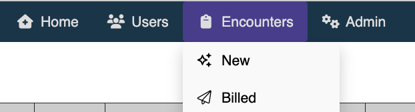
Click on the Encounters tab in the navigation menu.
-
In this view, you can see past encounters and create a new one.
3. Create a New Encounter
-
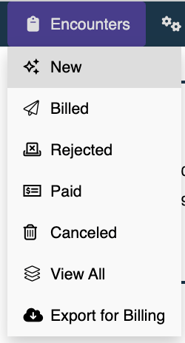
Click on the Encounters tab and select New
-
Select the Patient from the list.
-
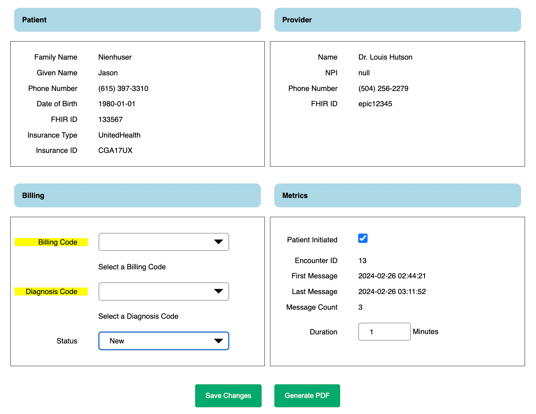
Under the Billing Section, select the Billing Code and the Diagnosis Code.
-
Under the Metrics Section, confirm the encounter was Patient Initiated by selecting the box and confirm the Duration of the interaction.
-
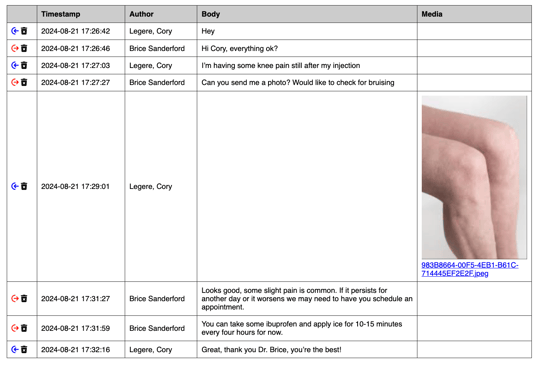
Review the conversation and make any changes accordingly.
-
Include any necessary attachments or images.
-
Click Save Changes.
4. Generate the Encounter
-
After reviewing the details, click Generate PDF if applicable.

-
A PDF will be downloaded to your device.
Troubleshooting / FAQs
Q: I don’t see the option to create an encounter. What should I do?
A: Ensure you are logged in with an account that has the necessary permissions. If the issue persists, contact DrChat support.
Q: Can I edit an encounter after submitting it?
A: Once an encounter is submitted, edits can be made. Select the Encounter you wish to edit, make the changes and click Save Changes.
Related Articles
📌 Loom Video Placeholder (Embed tutorial video here once recorded)