![Website+Logo+2.png]](https://help.docpace.com/hs-fs/hubfs/Docpace_April2024/images/Website+Logo+2.png?width=200&height=40&name=Website+Logo+2.png)
Step-by-Step Instructions
1. Sign In to DrChat
-
Visit the DrChat Portal Login Page on your web browser.
-
Log in using your credentials.
2. Navigate to the Users Tab
-
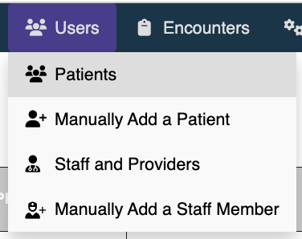
Click on the Users tab and select Patients.
-
In this view, you can see which patients have already been added to DrChat.
3. Invite a Patient
-
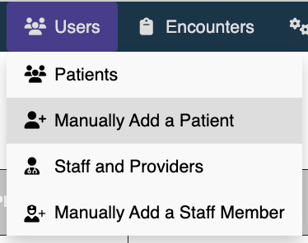
Click on the Users tab and select Manually Add a Patient.
-
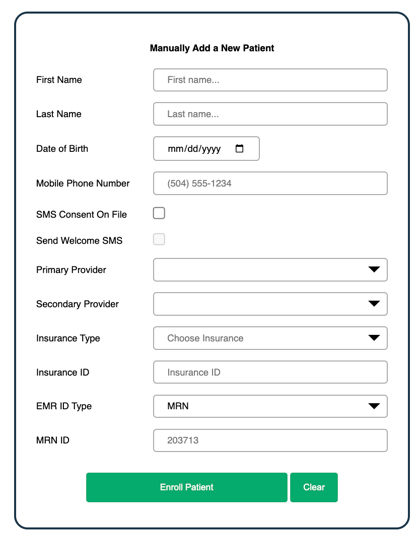
Enter the patient’s name, date of birth, and phone number
-
Check that the patient has SMS Consent On File and check the box accordingly
-
Select Welcome SMS to notify the patient to join DrChat.
-
Assign the patient to the appropriate primary and secondary provider both of whom will be included in patient communications.
-
Select Insurance Type and input the Insurance ID
-
Select EMR ID Type if applicable and input the MRN ID
4. Confirm Patient Enrollment
-
Once the patient accepts the invitation, their status will update to Active.
-
You can verify enrollment under the Patients tab Enrollment Status.
Troubleshooting / FAQs
Q: The patient did not receive the invitation. What should I do?
A: Check that an invitation was sent by navigating to Patients, searching for the patient's name, and checking the Invite Status. If necessary, resend the invitation from the Patients tab.
Q: How do I remove a patient from DrChat?
A: Navigate to the Patients tab, select the Edit Existing Patient, and choose Disable Access and Save Changes.
Related Articles
📌 Loom Video Placeholder (Embed tutorial video here once recorded)