![Website+Logo+2.png]](https://help.docpace.com/hs-fs/hubfs/Docpace_April2024/images/Website+Logo+2.png?width=200&height=40&name=Website+Logo+2.png)
DOCPACE® Manager – Time Stamps from athenahealth
DOCPACE® is powered by real-time updates from your athenahealth instance via API. When you perform specific actions in athenahealth (e.g., clicking certain workflow buttons), DOCPACE® detects these updates and adjusts the Manager view accordingly.
We monitor over 280 APIs for every appointment and request updates every 60 seconds.
Why so much data?
These updates fuel both our Patented Same-Day Schedule Optimization and DOCPACE® Insights. For every 10 providers, we process roughly 56,000 actionable data points per day. Contact your Customer Success Manager to set up an Insights training.
What Are Time Stamps?
Time Stamps are API updates that record both a START and END time for each encounter stage. They allow DOCPACE® to measure the full duration of a stage.
Note: Some time stamps contain both the end time of one stage and the start time of the next.
Default vs. Smart Time Stamps
|
Type |
Update Frequency |
Use Case |
|
Default |
Every 60 seconds |
Recommended for accuracy – matches athenahealth’s standard workflow. |
|
Smart |
Every 3 minutes |
Reduces clicks; can be enabled if needed or requested. |
Tip: Default Time Stamps ensure DOCPACE® most closely reflects athenahealth in real time. Smart Time Stamps can be turned on by your CSM for specific workflows.
Standard athenahealth Encounter Stages:
- Checking In – Patient arrives and completes check-in paperwork. (Purple)
- Ready for Staff – Patient waiting in reception for intake. (Orange)
- Intake – Patient in exam room with nurse/assistant for intake. (Blue)
- Ready for Provider – Patient in exam room awaiting provider. (Yellow)
- In Exam – Patient with provider. (Green)
Stage-by-Stage Timestamp Behavior
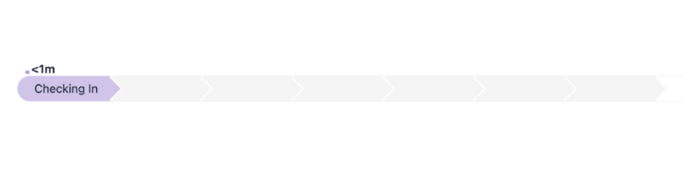
Checking In (Purple)
- Start: Click Start Check-In in athenahealth → DOCPACE® receives Check-In Start timestamp.
- End: Click Done with Check-In → DOCPACE® receives Check-In End timestamp and moves patient to Ready for Staff.
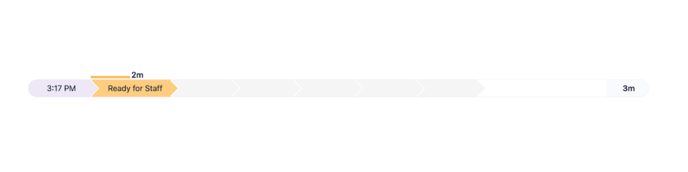
Ready for Staff (Orange)
- Start: Triggered by Done with Check-In.
- End (Default): Change status to With Staff → DOCPACE® moves patient to Intake.
- End (Smart): While in Ready for Staff, DOCPACE® checks for updates to Vitals or Allergies every 3 minutes. Change detected → moves to Intake. (In athenahealth, patient still appears as Ready for Staff unless marked “With Staff.”)
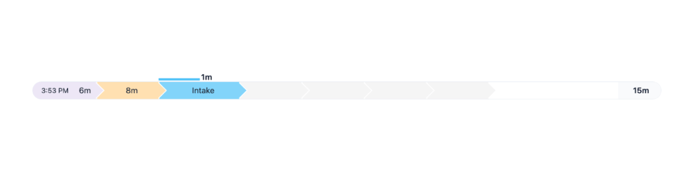
Intake (Blue)
Intake onward directly affects room utilization and real-time tracking.
- Start (Default): Status changed to With Staff.
- Start (Smart): Same Vitals/Allergies check as above until modified or “With Staff”/“Intake Done” is received.
- End: Click Done with Intake → moves to Ready for Provider.
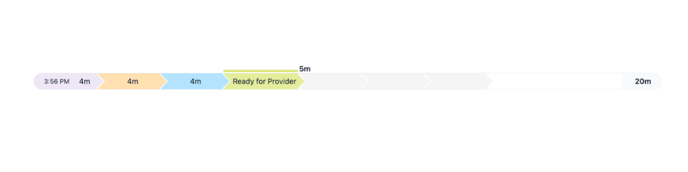
Ready for Provider (Yellow)
- Start: Triggered by Done with Intake.
- End (Default): Change status to With Provider (or auto-set when a provider opens exam page). Moves to In Exam.
- End (Smart): Checks for updates to HPI or Orders every 3 minutes until detected or “With Provider” is received. (In athenahealth, patients will not show In Exam unless marked as such.)
.png?width=688&height=172&name=green%20(2).png)
In Exam (Green)
- Start (Default): Status changed to With Provider (or auto-set when provider opens exam page).
- Start (Smart): Same HPI / Orders check as above.
- End (Default): Triggered by reaching Sign-Off in exam workflow or selecting Ready for Checkout.
Tip: You do not need to finish Sign-Off; reaching that section stops In Exam tracking.
End (Smart): Checks for Diagnoses updates every 3 minutes until detected or “Sign-Off”/“Ready for Checkout” is received.
Workflows can be complex, and accurate tracking depends on proper button clicks. DOCPACE® can end tracking even if encounters remain open in athenahealth for hours or days. Contact your CSM for workflow training to ensure accurate encounter timing.