![Website+Logo+2.png]](https://help.docpace.com/hs-fs/hubfs/Docpace_April2024/images/Website+Logo+2.png?width=200&height=40&name=Website+Logo+2.png)
If you have access to more than one provider’s schedule, your DOCPACE® Manager allows you to view schedules individually or in combination.
Two configuration settings control how these views display:
- Group Appointments by Provider
- Sort Appointments By
Each affects how appointments appear in both Individual and Combined views.
Individual Provider View
This is the default DOCPACE® setting. When you log in, you’ll land on the first provider in your view (sorted alphabetically by first name).
Default Configuration:
- Group Appointments by Provider = OFF
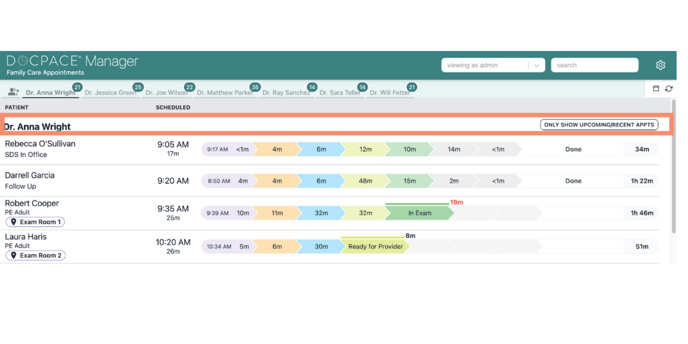
- Turning ON Group Appointments by Provider in this view:
- Displays the provider’s name in the Patient column.
- Enables the Only Show Upcoming/Recent Appts button, which collapses the view to show:
- Recently completed appointments.
- Active appointments.
- The next pending appointment.
Switching Providers
You can change to another provider’s schedule by:
- Clicking their name in the provider bar.
- Using the search option.
- Clicking Change Providers in Group (explained below).
Tip: If you prefer viewing one schedule at a time, set up popups in your configuration. Popups display in all views and can alert you to schedules that need attention.
Change Providers in Group
You can combine multiple provider schedules to see patient flow and appointment status across providers.
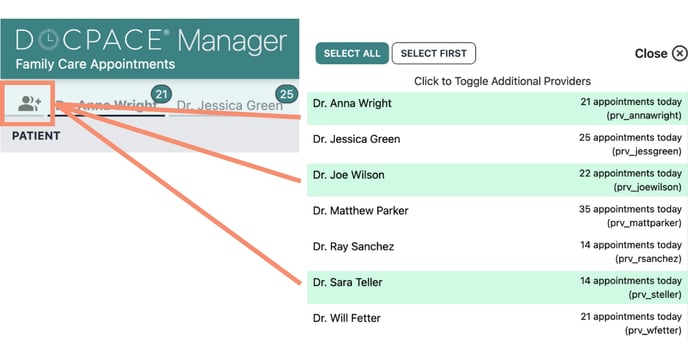
To combine schedules:
- Click the Change Providers in Group button (provider icon with “+”) on the far left of the provider bar.
- In the provider group view, choose from:
- Select All: Combine all available schedules (only providers with scheduled appointments will appear).
- Select First: Return to the first provider in your group.
- Toggle Individual Providers: Click specific provider names to add/remove them from the combined view.
Combined Schedule View:
When you’ve selected multiple providers, DOCPACE® offers two combined view styles, depending on whether Group Appointments by Provider is ON or OFF.
Grouping OFF (Single Unified Schedule)
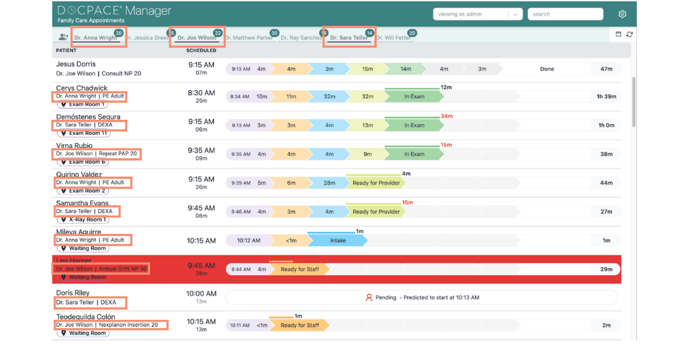
- Displays all selected providers in one continuous schedule.
- Provider names are underlined in the provider bar.
- Each patient’s provider name appears under the patient's name or initials
- Appointment order is determined by your Sort Appointments By setting (e.g., DOCPACE Queue).
Example Use Case:
Track all patients in a location or provider pod by:
- Grouping the necessary providers.
- Keeping Group Appointments by Provider OFF.
- Setting Sort Appointments By to DOCPACE Queue.
Grouping ON (Separate Schedules in One View)
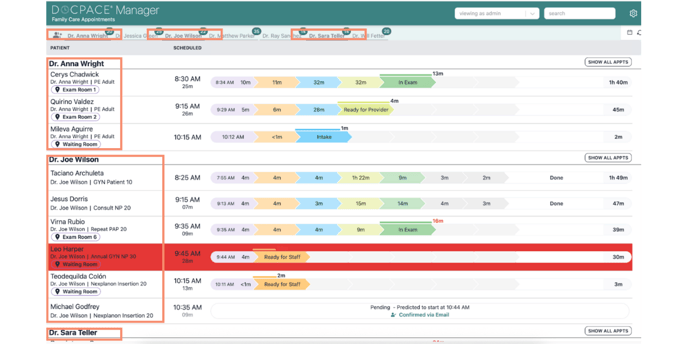
- Keeps each provider’s schedule visually separated.
- Displays the provider name at the start of each individual provider schedule, separated by a line
- Allows the Only Show Upcoming/Recent Appts filter for each provider’s schedule.
Example Use Case:
See which provider has capacity for a same-day appointment by:
- Grouping the necessary providers.
- Turning Group Appointments by Provider ON.
- Displaying cancelled appointments.
- Sorting by Scheduled Start.