![Website+Logo+2.png]](https://help.docpace.com/hs-fs/hubfs/Docpace_April2024/images/Website+Logo+2.png?width=200&height=40&name=Website+Logo+2.png)
Step-by-Step Instructions
1. Sign In to DrChat
-
Visit the DrChat Portal Login Page on your web browser.
-
Log in using your credentials.
2. Navigate to the Users Tab
-
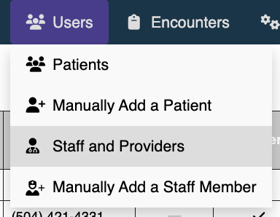
Click on the Users tab and select Staff and Providers.
-
In this view, you can see which members of your team have already been added to DrChat.
3. Add Team Members
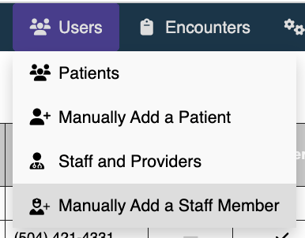
- Click on the Users tab and select Manually Add a Staff Member.
-
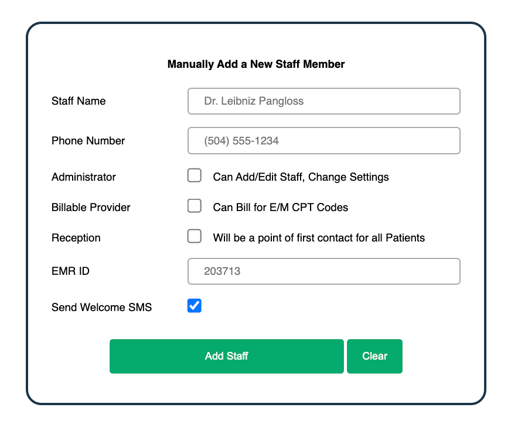
Enter the provider or staff member’s name, phone number, EMR ID if applicable.
-
Assign the appropriate role (e.g., Provider, Admin, Support Staff).
- Select Send Welcome SMS to send a notification to team member
-
Click Add Staff.
4. Manage Existing Team Members
-
Navigate back to Staff and Providers.
-
Click on the edit icon
 next to the team member’s name to edit their role or remove them from the practice.
 -
Click Save Changes.
Troubleshooting / FAQs
Q: I don’t see the option to add team members. What should I do?
A: Ensure you are logged in with an administrator account. If the issue persists, contact DrChat support.
Q: How do I remove a team member?
A: Go to Staff and Providers, select the team member, and choose the option to remove them.
Related Articles
📌 Loom Video Placeholder (Embed tutorial video here once recorded)