![Website+Logo+2.png]](https://help.docpace.com/hs-fs/hubfs/Docpace_April2024/images/Website+Logo+2.png?width=200&height=40&name=Website+Logo+2.png)
If you encounter an issue, you can:
- Contact your DOCPACE® Customer Success Manager
- Email help@docpace.com
- Submit a Support Request via the Configure Page in your DOCPACE® Manager
Tip: Subscribe to the DOCPACE® Status Page for real-time service updates.
Account Creation Issues
More details are available in the Getting Started knowledge base article.
Ensure the email on your athenahealth User Profile matches the one provided to DOCPACE®.
Confirm your athenahealth account is subscribed to DOCPACE® for Embedded App access.
DOCPACE® Practice URL Login Issues
- Log in using the email listed in your Welcome to DOCPACE® email.
- Make sure you have created your own password.
- If your password link has expired:
- Click Password Reset
- Enter your email
- Submit to receive a fresh link (Check your junk/spam folder for the reset email)
If reset doesn’t work, your Customer Success Manager can issue a new link.
Bookmark your Manager URL for quick future access.
Account Access Errors
If you receive an error logging in via SSO or Practice URL:
- Check the DOCPACE® Status Page to confirm there is no downtime (for DOCPACE® or athenahealth).
- Refresh your browser and try again.
- Clear your cookies/cache and try again.
- Ask your IT team to verify that DOCPACE® is not blocked by internal firewalls/security measures.
- If the error persists, take a screenshot of the message and send it to your Customer Success Manager.
DOCPACE® Manager Issues
Manager is Not Updating
- Ensure you have an active internet connection.
- Confirm the provider’s schedule is enabled on DOCPACE®.
- If appointments move between schedules, both must be enabled.
- Check the Status Page for downtime alerts.
- Refresh your browser.
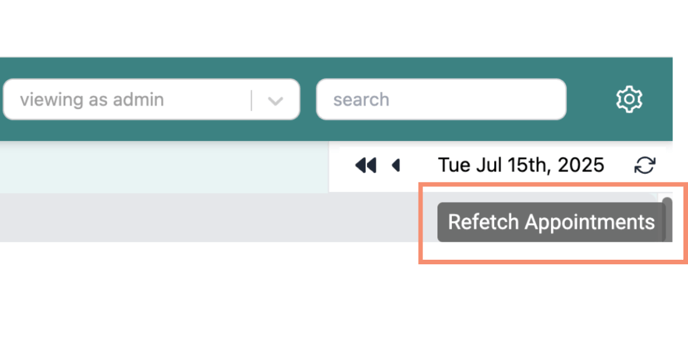
- Click Refetch Appointments in the top right corner of your Manager.
Provider Not Displaying
- Check the Search Bar, Provider Grouping button, or Seat Utilization page (Admin only) for the provider’s name.
- If found, send the provider’s name and departments to your Customer Success Manager.
- If not found, request that the provider be enabled in DOCPACE®.
Appointment Cycle Times Are Incorrect
- Reference the “athenahealth Time Stamps for Tracking Patient Flow in Real Time” article.
- Notify your Customer Success Manager and provide the provider name.
- If not enabled, request smart timestamps.
- You may need to provide several appointment IDs for review.
- Request a configuration review meeting.
Scheduled Start Times Are Incorrect
- On the affected device, visit: https://webbrowsertools.com/timezone/
- Take a screenshot of the results and send it to your Customer Success Manager.
DOCPACE® Engage Issues
- Stopping All Patient Engagement
- Cancel/reschedule in athenahealth — DOCPACE® will update automatically.
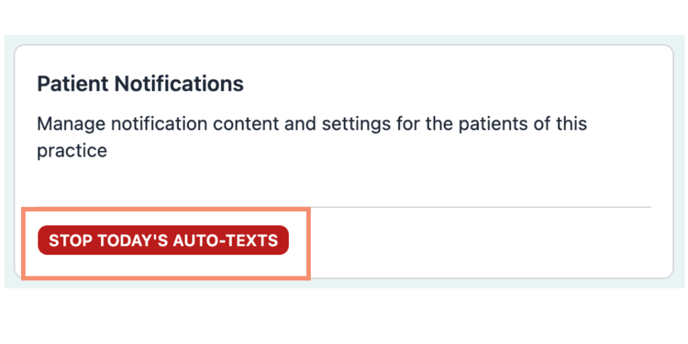
- Go to Configure Page → Click Stop Today’s Auto-Texts to halt engagement for the day.
- You can also request a pause until a specified date.
Incorrect Suggested Arrival Time
- Send the Appointment ID to your Customer Success Manager.
- You can request the full history of changes.
Patient Digital Reception Error
- Gather the patient’s cell carrier and phone operating system.
- Send this along with the Appointment ID to your Customer Success Manager.
Note: Outdated operating systems may cause display/functionality issues.
Outdated Information in Engage Text or Reception
Notify your Customer Success Manager to update configurations.
DOCPACE® Reports & Analytics Issues
Reports Not Loading
- Ensure your practice has at least one fully authenticated Tableau account.
- Confirm you have permission to access the report.
- DOCPACE® access types:
- Primary Tableau Account – Full provider permissions, subscriptions, and alerts.
- DOCPACE® Data-Only Account – Shares permissions with a Primary Account; no subscriptions or alerts.
Notify your Customer Success Manager with:
- Report name
- Required providers
- Associated Primary Tableau Account
📌 At least one Tableau authentication is required for any analytics features.
Provider Missing from Reports
Notify your Customer Success Manager with the provider’s name.
Common reasons for missing providers:
- Need to be added to permissions
- Need to be Enabled in DOCPACE®
Data Looks Incorrect
Schedule an Insights Meeting with your Customer Success Manager.
Data Missing from Reports
Notify your Customer Success Manager with the report name, your question, and the missing dates.
Session Timeouts
- DOCPACE® Manager logs out every 24 hours for security.
- Practice URL logouts affect all devices sharing the credentials.
- Reception Status Site logs out every 30 days.